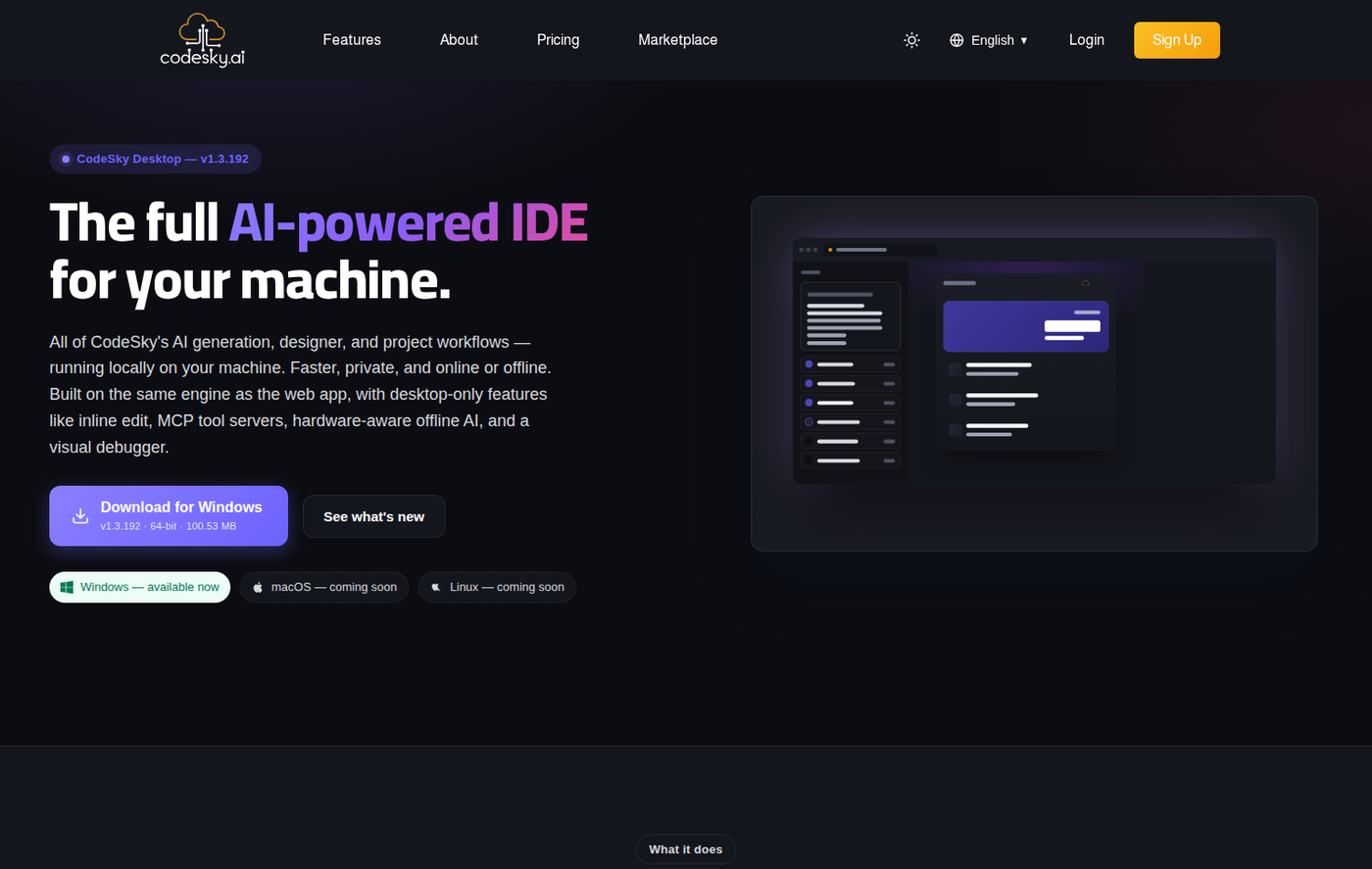
There are two ways to run CodeSky — pick the one that fits your workflow. Your projects, chat history, and credit balance sync across both automatically, so you can switch any time.
Option 1 — Web (zero install)
- Visit codesky.ai, sign in, and start building.
- Everything runs in your browser; generated apps preview live through our proxy.
- Nothing to download — ideal for a first look, or building from a machine you don't control.
Option 2 — Desktop editor
- Open the Downloads page and grab the installer for your OS — Windows
.exe, macOS.dmg, or LinuxAppImage/.deb. - Run the installer. On Windows you may see a SmartScreen prompt on first launch — choose More info → Run anyway. The editor self-updates after that, so you install once.
- Sign in with the same account you use on the web; your projects appear immediately.
What the desktop editor adds
- A real PTY terminal for installs, builds, and git.
- @-mentions of local files and symbols.
- AI agents that run tests, shell commands, and deployments on your machine.
- Prettier/ESLint running against your project on disk.
Which should I use?
- Start on the web to try things out with zero setup.
- Move to the desktop editor when you want the terminal, agents with local file access, and one-click deployment to your own servers.
- You lose nothing by switching — it's the same account and the same projects.
Keeping the desktop app up to date
You never reinstall the desktop app to get improvements. It checks for new versions in the background and downloads them quietly while you keep working.
- When an update is ready you are prompted to restart, or it installs the next time you open CodeSky.
- Updates arrive the same way on Windows, macOS and Linux — you install once.
- Staying current matters: new model support, editor fixes and deployment improvements ship continuously.
Installer notes by platform
- Windows — run the installer and follow the prompts. On first launch SmartScreen may warn; choose More info → Run anyway.
- macOS — open the downloaded file and drag CodeSky into Applications.
- Linux — open the AppImage or .deb and launch it like any other app.
Sign in with email, Google or GitHub — use the same method everywhere so your projects stay together.
FAQ
Do I have to install anything to start?
No — the web app needs only a browser. Install the desktop editor later if you want local power features.
Why does Windows warn me on first launch?
The installer isn't code-signed yet, so SmartScreen shows an "unknown publisher" notice. Choose More info → Run anyway.
Will my projects be on both?
Yes — projects, chat history, and credits sync across web and desktop automatically.