
Most of the time you build with CodeSky just by describing what you want. But if you ever feel curious to peek under the hood, the desktop app includes a built-in code editor and a command area so you can look at or fine-tune your app directly.
Who this is for
You do not need to use these tools to build great apps, the AI handles everything for you. They are simply there for moments when you want a closer look or a bit more control:
- Curious builders who want to see how their app is put together.
- People making small tweaks they would rather adjust by hand.
- Those learning as they go and exploring how things fit together.
If that is not you, feel free to skip these tools entirely, you lose nothing by sticking to plain-language requests.
The built-in code editor
The desktop app comes with a friendly built-in code editor where you can open and view the files that make up your app. From here you can:
- Browse your project and see how it is organized.
- Open files to read what is inside.
- Make small edits directly when you want to fine-tune something.
Changes you make are part of the same project, so you can preview the results right away and see how your edits affect the app.
The integrated command area
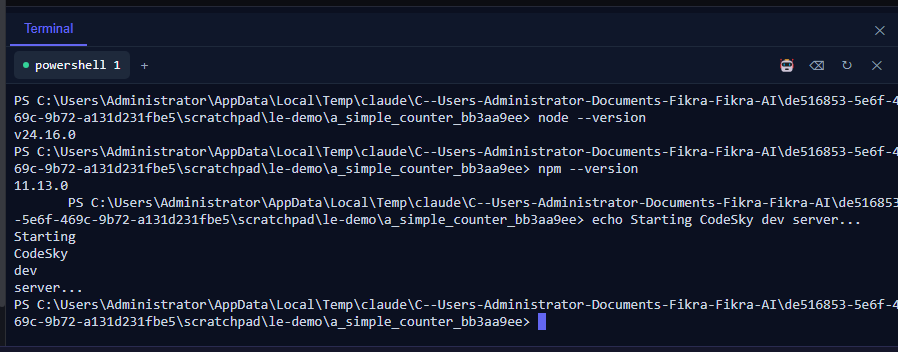
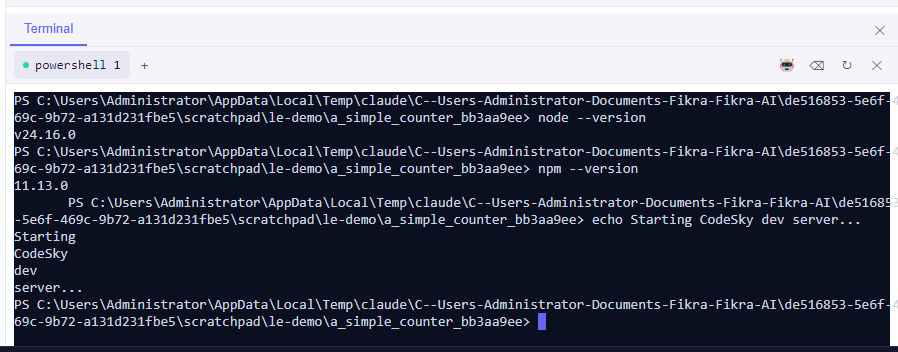
Alongside the editor, the desktop app offers an integrated command area, a built-in space for running commands related to your project without leaving the app. It is handy for more advanced tasks and keeps everything in one place, so you do not have to switch between separate programs.
A safe way to explore
Because your desktop project can live on your own computer, exploring is low-risk:
- Look around freely, viewing files changes nothing.
- Make one small change at a time and preview the result.
- If something does not look right, you can ask the AI to help fix or revert it.
The best of both worlds
The beauty of the desktop app is that you can move fluidly between two styles of working: describe what you want in plain language and let the AI build it, or roll up your sleeves and adjust the details yourself. Use whichever approach fits the moment, and switch any time.
Everyday terminal commands
Open the terminal from the editor's bottom-panel toggle. The working directory is already your project root.
- Install a dependency —
npm install axios. - Run or build your app —
npm run dev,npm run build. - Use git directly —
git status,git add .,git commit. - Run any project script or CLI you need.
A real terminal, not a sandbox
- It is a genuine PTY on your machine: environment variables, interactive prompts, watchers and long-running processes all behave normally.
- That is what makes local builds, tests and deployments possible from inside the editor.
Working with agents
A DevOps or Testing agent can propose a command rather than run it silently — you see what it wants to execute and approve it. The output lands in the same terminal, so the agent's work and your own share one history.