
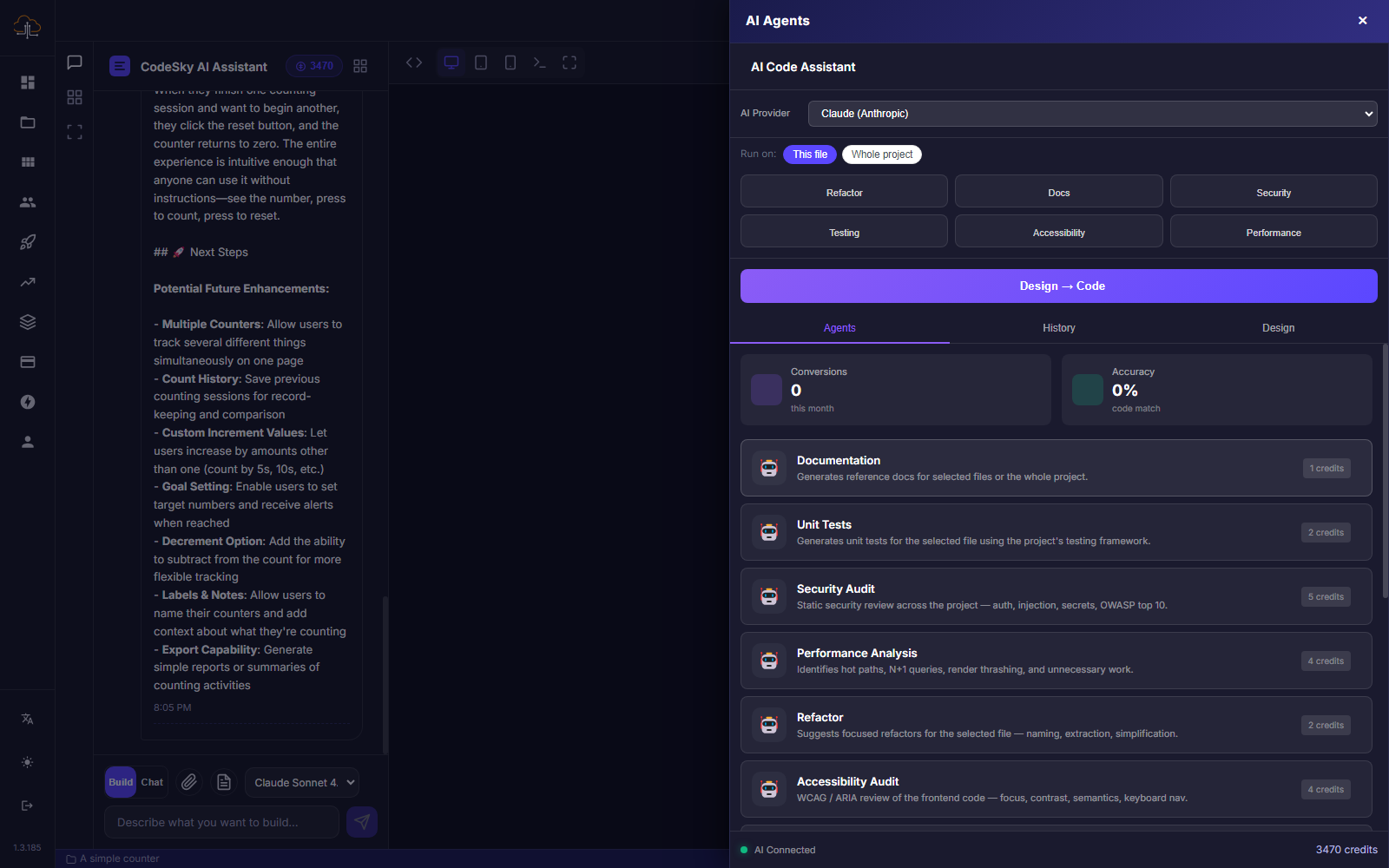
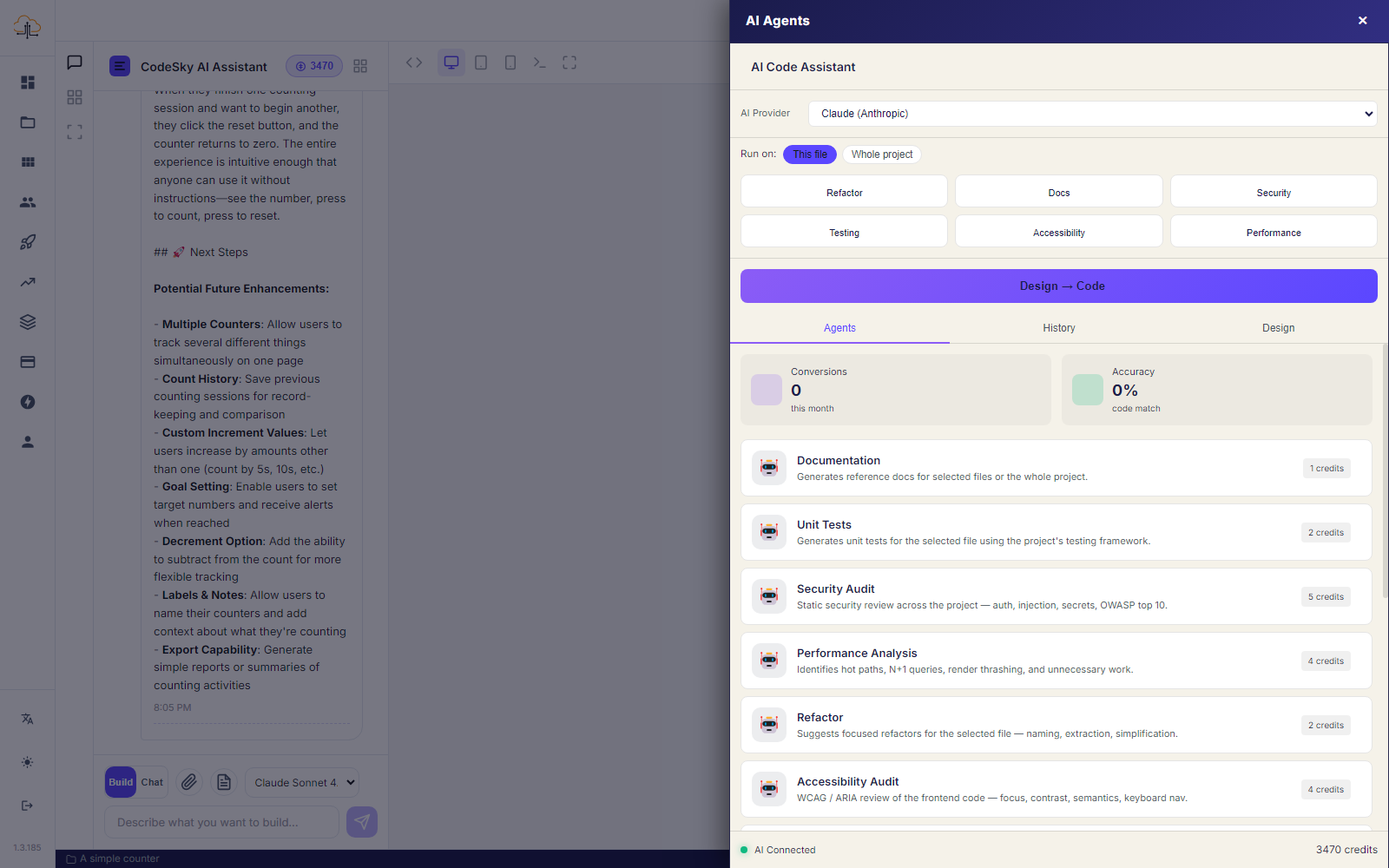
AI Agents turn the editor's chat panel from a simple assistant into a team of specialists. Instead of writing one instruction at a time, you describe a goal and an agent plans the steps, edits multiple files, runs the app, and reports back — all inside your project.
How to run an agent
- Open your project so the editor and its right-hand chat panel are visible.
- Describe the outcome you want, e.g. "Add pagination to the products list and write tests for it."
- Pick the agent that fits the job, or leave it on the default build agent.
- Review the plan the agent proposes, then approve it — it edits files and runs the app for you.
- Watch the live preview refresh, then iterate with a follow-up if anything needs tweaking.
Which agent, when
- Build — add features or wire up new screens.
- Testing / QA — generate and run tests before you ship.
- Security — review for vulnerabilities and harden endpoints.
- Refactoring — split a bloated file, rename across the project, tidy structure.
- DevOps — run builds, migrations, and deployments from the terminal.
- Documentation — write a README or API docs from the current code.
Tips for good results
- Give one clear objective per run rather than a long mixed list.
- Ask the agent to explain its plan first so you can catch a wrong assumption before any file changes.
- Keep the scope bounded — a tight goal produces a tighter, more correct result.
Common mistakes to avoid
- Approving a plan you didn't read. Skim it — it's your chance to steer before edits land.
- Stacking five goals in one run. Split them so a wrong turn is easy to undo.
FAQ
Do agents work on the web too?
Agents that only edit code work anywhere. Those that run tests, deploy, or use the terminal are most powerful in the desktop app, where they have local access.
Can I stop an agent mid-run?
Yes — you approve the plan before it acts, and you can interrupt and redirect it at any point.
Will it change files I didn't expect?
Review the proposed plan first; it lists what it intends to touch. @-mention files to keep it focused.