
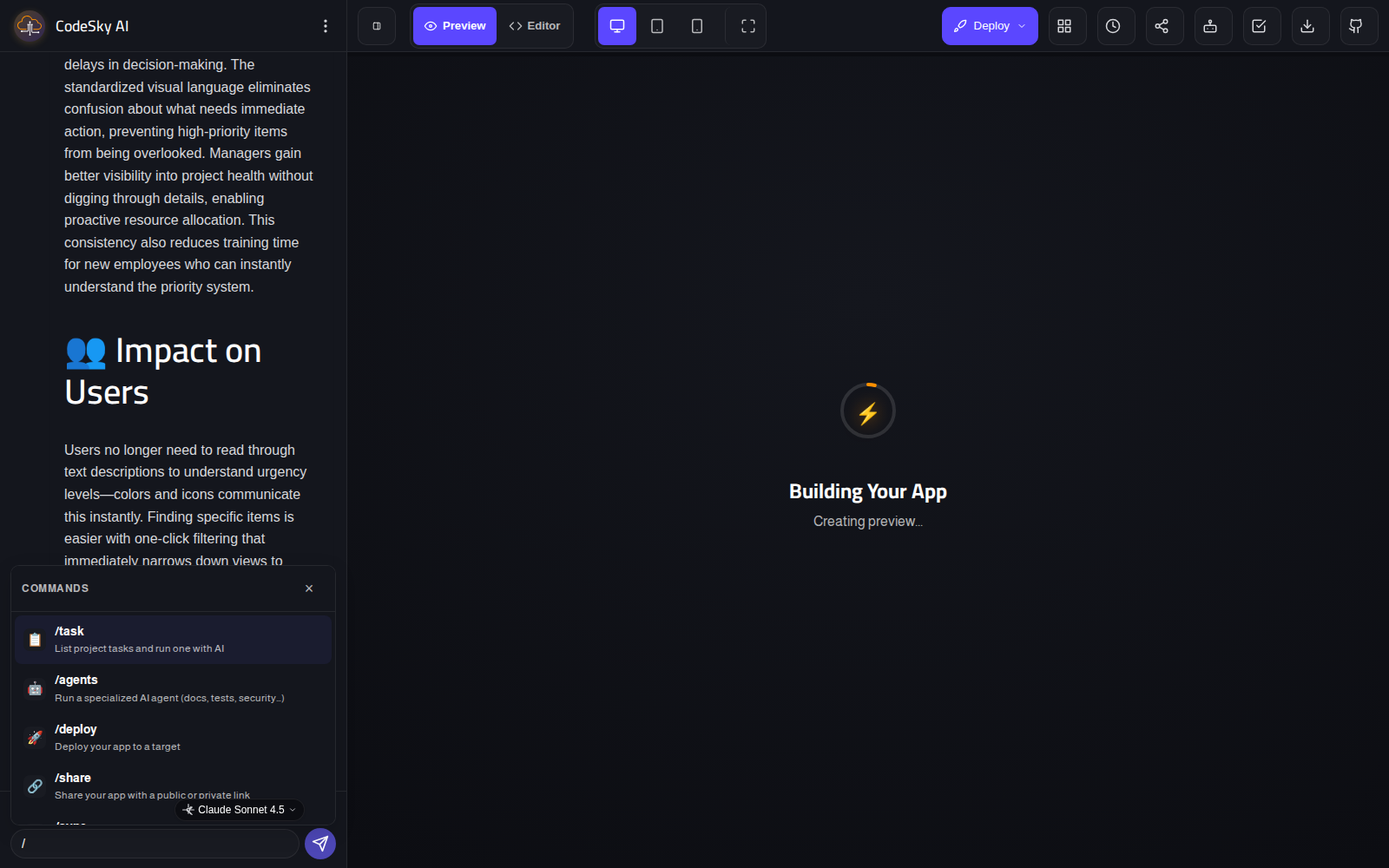
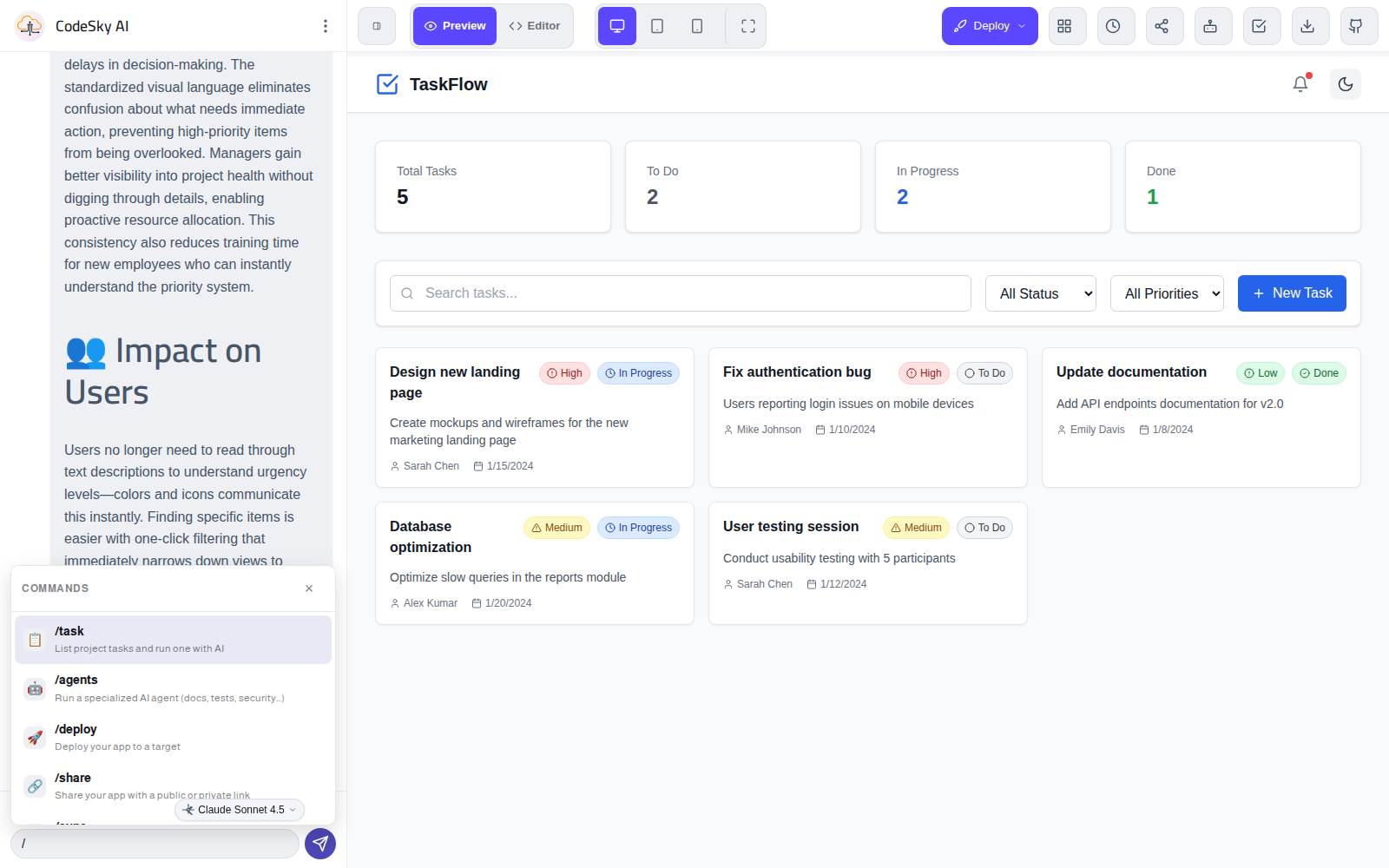
Slash commands turn the designer chat into a launcher. Type / and a menu appears with every action you can run — from listing and executing tasks to deploying, sharing and opening the AI agents — so you never have to hunt through toolbars.
How to use them
- Put your cursor in the chat and type
/— the command menu opens. - Keep typing to filter (e.g.
/dep? /deploy). - Use ? / ? to move and Enter (or click) to run. Esc closes the menu.
- Commands run their action directly — no message is sent to the AI, so you are not charged credits for the command itself.
Run tasks with /task
The headline command is /task: it lists your project's open tasks right in the menu. Pick one and CodeSky sends it to the AI to implement through the normal build flow — turning a task into working code without leaving the chat.
The commands
/task — list & run tasks with AI · /agents — open the specialized AI agents · /deploy — deploy your app · /checklist — production-readiness · /download — export the source · /model — switch the AI model · /settings — open settings · /help — list every command. On the web designer you also get /share, /sync, /design and /history.
Tip:
/help drops a cheat-sheet of every command into the chat — handy while you learn them.Slash commands work in both the web designer and the desktop app, alongside @-mentions (type @ to reference a file).